Theme maps of Germany
Geographic quizzes are ones that I love to do. I do like traveling, discovering the geography and reading a lot about different places. Geographic quizzes are "save" to create as well. That means it can be easily verified whether a solution is correct or not, simply by using the geographic coordinates. Fun fact: there are nice patterns to discover in maps. I will show here a few examples.
Consider these 3 maps and distinguish, which maps shows:
- cities with more than 500k inhabitants
- funiculars on regular operation
- oldest tows in Germany
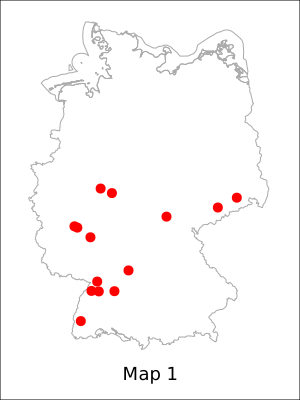
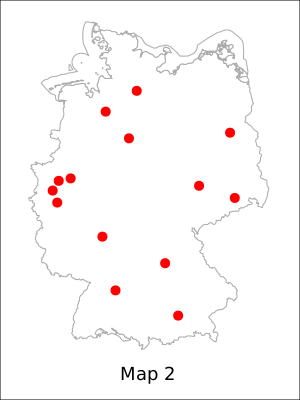
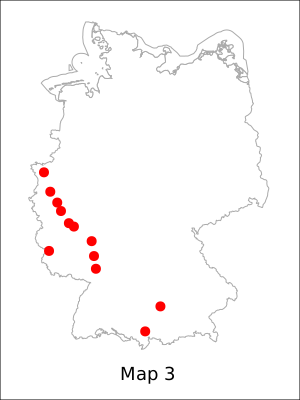
Each map has a certain pattern. Knowing a little more about the history and topography of Germany should make it easy to answer the question.
But how can we create such maps?
From the shape files to the GeoJSON
First of all we need a map of Germany. This map needs to be geo referenced. That could be any image that is geo referenced. That means the image contains information so that a certain pixel can be transferred into a geographic coordinate. If the image is a jpeg or png then these maps are called raster maps.
The other type of maps is vector map. Such maps contain geographic information, annotated with geographic coordinates that describe shapes, polygons etc. and a description of what is defined there. This information is used in a GIS application that can create maps from it. Google Maps or Open Street Map are such Systems that use this kind of maps. Even though the tiles are images, these are produced from geographic data.
I found such geographic map data that can be used with a GIS application. The images above can be created from both types of maps. However, vector maps are more versatile when using them, and they scale better and still look good. Also if information changes, a vector map is easily recreated using the updated information.
Map data from Germany can be downloaded e.g. from this page: https://www.arcgis.com/home/item.html?id=ae25571c60d94ce5b7fcbf74e27c00e0. Click the blue button on the right upper corner that is labeled "herunterladen". What you get is a ZIP file that contains shape data of the outline of Germany (1st level administrative border), the federal states (2nd level administrative borders), and the 3rd level administrative areas (Stadt- Landkreise in Germany). This is comparable to the border of the country, the states/provinces, and the counties.
In order to work with the downloaded data we first need to install the GDAL library. On debian like systems you can install the GDAL binaries with:
sudo apt install gdal-bin
Once the GDAL binaries are installed, we take the shape file (you will notice several files - for the 3 levels of administrative borders) to create a GeoJSON from it.
unzip vg2500_geo84.zip
ogr2ogr -f GeoJSON germany.json vg2500_sta.shp
Having this GeoJSON of Germany we are able now to draw a map into a html page using the d3.js library. Each geographic point from the GeoJSON is taken and a polygon is drawn in the SVG. The geographic coordinate is translated into a position in the SVG image. Size and center of the SVG is defined before. The result is an inline SVG element containing the border of Germany:
<!DOCTYPE html>
<html>
<head>
    <meta charset="utf-8">
    <script src="//d3js.org/d3.v3.min.js" charset="utf-8"></script>
    <script src="//d3js.org/topojson.v1.min.js"></script>
    <script>
        document.addEventListener("DOMContentLoaded", function() {
          // The map is a path in a svg, set with and height of the svg.
          var svg = d3.select('svg').attr('width', 300).attr('height', 400);
          // Projection of this data is mercator, check this with the geo data that you will use.
          var projection = d3.geo.mercator()
            .scale(1700)            // reasonable scale that the map fits into 300x400
            .center([10.5, 51.5])   // center of Germany
            .translate([150, 200]); // half of width and height
          // Set the projection to the path
          var path = d3.geo.path().projection(projection);
          // Append a graph path and give it some styling, there are no paths yet
          var mapLayer = svg.append('g').attr('stroke', '#aaa').attr('fill', 'none');

          // Load the json with the german border, each feature is appended to the path and
          // a line is drawn from the previous point to the current point.
          d3.json("germany.json", function (error, data) {
            if (error) return console.error(error);
            mapLayer.selectAll('path')
              .data(data.features)
              .enter()
              .append('path')
              .attr('d', path)
              .attr('vector-effect', 'non-scaling-stroke');
          });
        });
    </script>
</head>
<body>
<svg></svg>
</body>
</html>
You may realize it by looking at the sample html, we are very flexible in creating the map. The size, scale and details can be customized by adjusting the size of the SVG and the scale parameter when drawing the map. I decided here for a roughly 300x400 image dimension (the actual map is a little smaller).
Geodata of Objects
At this point we have the map and now need to get the dots inside it, that represent a location. In case of our maps above this would be a town, city or a funicular. Information about cities and funiculars are taken from Wikipedia. There is a list of funiculars in Germany, a list of the oldest towns in Germany, and a list of cities by population.
In the article Fetch geo data from Wikipedia I explained how to download the geographic location from a wikipedia page and provided a Python script to automate this task. This comes into usage when creating a list of wiki pages from which the GeoJSON file is created. The list of the corresponding wiki links is built manually from the wikipedia list page. I run over each list, check the content and add the corresponding wiki page to a text file. For each theme I create one text file containing a link to the wiki pages of one element on each line. The list of the oldest towns in Germany looks like this:
https://de.wikipedia.org/wiki/Andernach
https://de.wikipedia.org/wiki/Trier
https://de.wikipedia.org/wiki/Neuss
https://de.wikipedia.org/wiki/Kempten_(Allg%C3%A4u)
https://de.wikipedia.org/wiki/Worms
https://de.wikipedia.org/wiki/Augsburg
https://de.wikipedia.org/wiki/Bonn
https://de.wikipedia.org/wiki/K%C3%B6ln
https://de.wikipedia.org/wiki/Koblenz
https://de.wikipedia.org/wiki/Mainz
https://de.wikipedia.org/wiki/Speyer
https://de.wikipedia.org/wiki/Xanten
We put this list into a file and take the script wiki2geojson.py of the article mentioned before
to create a GeoJSON that looks like this:
{
    "type": "FeatureCollection",
    "features": [
        {
            "type": "Feature",
            "geometry": {
                "type": "Point",
                "coordinates": [
                    7.4016666666667,
                    50.439722222222,
                    0
                ]
            },
            "properties": {
                "name": "Andernach"
            }
        },
        {
            "type": "Feature",
            "geometry": {
                "type": "Point",
                "coordinates": [
                    6.6439,
                    49.7596,
                    0
                ]
            },
            "properties": {
                "name": "Trier"
            }
        },
        {
            "type": "Feature",
            "geometry": {
                "type": "Point",
                "coordinates": [
                    6.6913888888889,
                    51.198611111111,
                    0
                ]
            },
            "properties": {
                "name": "Neuss"
            }
        },
        {
            "type": "Feature",
            "geometry": {
                "type": "Point",
                "coordinates": [
                    10.316666666667,
                    47.733333333333,
                    0
                ]
            },
            "properties": {
                "name": "Kempten_(Allgäu)"
            }
        },
        {
            "type": "Feature",
            "geometry": {
                "type": "Point",
                "coordinates": [
                    8.3608333333333,
                    49.633055555556,
                    0
                ]
            },
            "properties": {
                "name": "Worms"
            }
        },
        {
            "type": "Feature",
            "geometry": {
                "type": "Point",
                "coordinates": [
                    10.898333333333,
                    48.371666666667,
                    0
                ]
            },
            "properties": {
                "name": "Augsburg"
            }
        },
        {
            "type": "Feature",
            "geometry": {
                "type": "Point",
                "coordinates": [
                    7.0998138888889,
                    50.733991666667,
                    0
                ]
            },
            "properties": {
                "name": "Bonn"
            }
        },
        {
            "type": "Feature",
            "geometry": {
                "type": "Point",
                "coordinates": [
                    6.9569444444444,
                    50.938055555556,
                    0
                ]
            },
            "properties": {
                "name": "Köln"
            }
        },
        {
            "type": "Feature",
            "geometry": {
                "type": "Point",
                "coordinates": [
                    7.5938888888889,
                    50.356666666667,
                    0
                ]
            },
            "properties": {
                "name": "Koblenz"
            }
        },
        {
            "type": "Feature",
            "geometry": {
                "type": "Point",
                "coordinates": [
                    8.2711111111111,
                    50,
                    0
                ]
            },
            "properties": {
                "name": "Mainz"
            }
        },
        {
            "type": "Feature",
            "geometry": {
                "type": "Point",
                "coordinates": [
                    8.441,
                    49.3172,
                    0
                ]
            },
            "properties": {
                "name": "Speyer"
            }
        },
        {
            "type": "Feature",
            "geometry": {
                "type": "Point",
                "coordinates": [
                    6.4505555555556,
                    51.660277777778,
                    0
                ]
            },
            "properties": {
                "name": "Xanten"
            }
        }
    ]
}
This JSON needs to be combined with the data from the german map in order to get an image like above.
Mashup data
We now can combine the map with the feature data of the oldest towns. We take the HTML snippet from above with the german map and extend it with the data from the GeoJSON.
Before the last closing curly and normal brackets (that mark the end of the document.addEventlistener
function argument) add the following code:
// the feature data for the location of the theme
d3.json("oldest_towns.json", function (error, data) {
  if (error) return console.error(error);
  for(var i = 0; i < data.features.length; i++) {
    var coordinates = projection([data.features[i].geometry.coordinates[0], data.features[i].geometry.coordinates[1]]);
    svg.append("circle")
      .attr('cx', coordinates[0])
      .attr('cy', coordinates[1])
      .attr('r', 5)
    .  attr('fill', 'red');
  }
});
Here we load the GeoJSON with the feature data (in this case the locations of the oldest towns in Germany) in the same way that we loaded the map data before. The difference is, that each location is printed into the SVG as a red circle with the radius of five pixel. the result is the outline of Germany with some red dots in it.
What I did as well to the svg was that I added a black frame around the image and a label at the bottom line. The images now look identically as displayed at the beginning of this article.
// The map label
svg.append('text')
  .attr('x', '50%')
  .attr('y', 390)
  .attr('text-anchor', 'middle')
  .attr('font-size', '12px')
  .text('My custom map');
// The black frame at the image border
svg.append('rect')
  .attr('width', 300)
  .attr('height', 400)
  .attr('fill', 'none')
  .attr('stroke', '#000');
This code can be placed at the end of the function that is defined as an argument in the event loader.
Download the SVG
The SVG is created inline in the HTML document when loading the page. We could use the firebug or the chrome inspector, select the svg element, click on edit svg and copy the whole content (including the svg tags) into an empty file. Before we are actually able to display the image the svg element needs to be appended by this attribute:
xmlns="http://www.w3.org/2000/svg"
After these changes, save the file and open it with the browser and the map should be displayed.
To add some more comfort, we may add the attribute directly in the empty SVG element in the html. In addition, we add a download link, next to the empty svg element in the html:
<a href="#" download="mashup_map.svg">Download SVG</a>
The href attribute needs to be filed with the image data from svg. This can be done once the
SVG is complete, e.g. has been rendered with the map of Germany and the circles with the
locations.
d3.select('a')
  .attr('href', "data:image/svg+xml;base64,\n" + btoa(d3.select('svg').node().outerHTML));
To assure that the SVG is complete, the code is reorganized a little. The Javascript uses
Promises for the Ajax calls. In that way the calls are done subsequently, hence the over all
runtime is longer than in the example above. However, after the first call for loading
the map data went through successfully the second call fetches the data for the map locations.
When the answer of this call is received we know that the data is complete, therefore can
use the svg data to build the download link.
<!DOCTYPE html>
<html>
<head>
    <meta charset="utf-8">
    <script src="//d3js.org/d3.v3.min.js" charset="utf-8"></script>
    <script src="//d3js.org/topojson.v1.min.js"></script>
    <script>
        document.addEventListener("DOMContentLoaded", function() {
          // The map is a path in a svg, set with and height of the svg.
          var svg = d3.select('svg').attr('width', 300).attr('height', 400);

          // Projection of this data is mercator, check this with the geo data that you will use.
          var projection = d3.geo.mercator()
            .scale(1700)            // reasonable scale that the map fits into 300x400
            .center([10.5, 51.5])   // center of Germany
            .translate([150, 200]); // half of width and height
          // Set the projection to the path
          var path = d3.geo.path().projection(projection);
          // Append a graph path and give it some styling, there are no paths yet.
          var mapLayer = svg.append('g').attr('stroke', '#aaa').attr('fill', 'none');

          function loadMap() {
            return new Promise((resolve, reject) => {
              // Load the json with the german border.
              d3.json("germany.json", function (error, data) {
                if (error) reject(error);
                else resolve(data);
              });
            })
          }

          function loadFeatureData() {
            return new Promise((resolve, reject) => {
              // The feature data for the location of the theme.
              d3.json("oldest_towns.json", function (error, data) {
                if (error) reject(error);
                else resolve(data);
              });
            })
          }

          loadMap().then((data) => {
            // In the data each feature data point is part of the border and
            // appended to the path connected by a line to the previous point.
            mapLayer.selectAll('path')
              .data(data.features)
              .enter()
              .append('path')
              .attr('d', path)
              .attr('vector-effect', 'non-scaling-stroke');
            loadFeatureData().then((data) => {
              // For each feature in the data add a red circle at the defined location.
              for(var i = 0; i < data.features.length; i++) {
                var coordinates = projection([data.features[i].geometry.coordinates[0], data.features[i].geometry.coordinates[1]]);
                svg.append("circle")
                  .attr('cx', coordinates[0])
                  .attr('cy', coordinates[1])
                  .attr('r', 5)
                  .attr('fill', 'red');
              }
              // Add a map label at the bottom
              svg.append('text')
                .attr('x', '50%')
                .attr('y', 390)
                .attr('text-anchor', 'middle')
                .attr('font-size', '12px')
                .text('My custom map');
              // Add the black frame at the image border
              svg.append('rect')
                .attr('width', 300)
                .attr('height', 400)
                .attr('fill', 'none')
                .attr('stroke', '#000');
              // Here the svg is complete, therefore fill the href attr of the anchor element
              // with the complete data from the svg as a base64 encoded string.
              d3.select('a')
                .attr('href', "data:image/svg+xml;base64,\n" + btoa(d3.select('svg').node().outerHTML));
            }).catch((error) => {
              console.log(error);
            });
          }).catch((error) => {
            console.log(error);
          });
        });
    </script>
</head>
<body>
<svg xmlns="http://www.w3.org/2000/svg"></svg>
<br/>
<a href="#" download="mashup_map.svg">Download SVG</a>
</body>
</html>
After downloading the html you also need to download the map data and process the steps as described in this article in order to have the map data in germany.json, the oldest_towns.json containing the locations of the towns, and have all three files placed into the same folder. Also, you need to run a webserver in that folder to have a complete working example. A webserver can be easily started by:
php -S localhost:8000
python3 -m http.server 8000
depending on which software you have installed. You can use either the PHP or the Python
command or use an existing webserver that you have already running.
To access the page, type into your web browser the address http://localhost:8000/map_final.html.
Working Webapplication
The Theme maps web application takes the code above in a whole with some extensions and lets you create theme maps from a predefined set of a feature collection or an uploaded custom geojson. At the moment Germany is supported only.
Recently I have updated the web application to have maps for Switzerland as well. However, I am still missing real data for "theme maps" of Switzerland. The first start is a map of the 4000er (mountains with an altitude of more than 4000m above sea level). Getting the data seems to be a bit difficult. Several pages mention that there are 48 peaks that fall into this category. However, the pages that list the 48 peaks miss the geographic location. Wikipedia on the other hand, contains a list of mountains, but misses quite a bunch. A sparql query at the wikidata endpoint returns too many results. I have to match the different results manually and create a list of it.