Profile PHP files
There are many articles and tutorial on the web on how to profile a PHP script. You may use the Xdebug profiler in conjunction with KCacheGrind or a SaaS solution like Blackfire.
I didn't have any of them. In my real world example I was on the test system webserver with no Xdebug installed for the PHP and also no Blackfire module available (that needs to be included into your PHP installation). The test system should look very much alike the productive environment where these tools on purpose are not installed.
Profiling into a custom log
At first, you should know the code well and debug it locally so that you know beforehand where exactly your bottleneck is and where to start to set the measuring points. I didn't know it so well because my use case was the search that on a local system looks very different. The test environment had more data (from the real world) and another setup with an external search system attached. Therefore, I had to actually look for the correct spots where to place my profiling code at the system directly.
At various places I used the following line that I just placed somewhere in the code.
file_put_contents('/tmp/debug.log',
    (new \DateTime())->format('Y-m-d H:i:s.u') . ' '
    . __FILE__ . ':' . __LINE__ . PHP_EOL, FILE_APPEND);
You can actually out the code in one line. I inserted some linebreaks just for readability here. The code is pretty much self-explanatory. Also, you may place the line nearly anywhere in the script without breaking it.
Running the code produces a log (in your system temp folder) that may look like this:
2023-11-03 09:02:51.422885 /var/www/search/index.php:72
2023-11-03 09:02:51.423063 /var/www/search/classes/manager.php:765
2023-11-03 09:03:16.420430 /var/www/search/classes/manager.php:991
2023-11-03 09:03:16.435056 /var/www/search/classes/manager.php:765
2023-11-03 09:03:28.232236 /var/www/search/classes/manager.php:991
2023-11-03 09:03:29.491875 /var/www/search/index.php:110
2023-11-03 09:03:41.636018 /var/www/search/index.php:72
2023-11-03 09:03:41.636133 /var/www/search/classes/manager.php:765
2023-11-03 09:04:00.752160 /var/www/search/classes/manager.php:991
2023-11-03 09:04:00.766127 /var/www/search/classes/manager.php:765
2023-11-03 09:04:12.112559 /var/www/search/classes/manager.php:991
2023-11-03 09:04:12.122653 /var/www/search/index.php:110
The log contains a time stamp with the file and line number when and where it was taken. Depending on your needs you can produce many of these logs.
Evaluation of the debug log
From the times of the log entries we now need to get the actual running time
of the code. The log above contains two measuring points in
/var/www/search/classes/manager.php: in line 765 and 991. We want the
elapsed time between these tow points. And, we want them for all the times
when this code block was called. That means, filter the relevant lines and
calculate the time delta.
I used a small PHP script for that:
<?php

$infile = $_SERVER['argv'][1] ?? '';
$from = $_SERVER['argv'][2] ?? '';
$to = $_SERVER['argv'][3] ?? '';

if (empty($infile) || empty($from) || empty($to)) {
    echo "Missing arguments <file> <pattern_from> <pattern_to>\n";
    exit(1);
}

$lines = @file_get_contents($infile);

if (empty($lines)) {
    echo "File empty or not found\n";
    exit(1);
}

$lines = explode("\n", $lines);

$tuple = ['', ''];
while ($line = array_shift($lines)) {
    if (str_contains($line, $from)) {
        $tuple[0] = implode(' ', array_slice(explode(' ', $line), 0, 2));
    } else if(str_contains($line, $to)) {
        $tuple[1] = implode(' ', array_slice(explode(' ', $line), 0, 2));
    }
    if (!empty($tuple[0]) && !empty($tuple[1])) {
        [$start, $end] = array_map(fn($t) => strtotime($t) + substr($t, strpos($t, '.')), $tuple);
        echo printf("%.3f", ($end - $start)) . PHP_EOL;
        $tuple = ['', ''];
    }
}
The call on the command line looks like this:
php measure_time.php debug.log manager.php:765 manager.php:991
and returns the following output:
24.9976
11.7976
19.1166
11.3466
This output can be redirected into one csv file e.g. function-calls-orig.csv.
Have evidence how the code has improved
Once I had my log lines with the times I could see where the code needed
some time and where it was fast. This gave me an idea where to start looking
into and implemented some changes to make the request run faster.
After implementing the changes, I kept the profiling log line at the same
places where they were before. Then I run the same request again to produce
a similar log as above. I used a different log file name called
debug_after.log that contains the following content:
2023-11-03 09:18:46.866259 /var/www/search/index.php:72
2023-11-03 09:18:46.866397 /var/www/search/classes/manager.php:799
2023-11-03 09:19:12.046052 /var/www/search/classes/manager.php:1022
2023-11-03 09:19:12.061792 /var/www/search/classes/manager.php:799
2023-11-03 09:19:12.462033 /var/www/search/classes/manager.php:1022
2023-11-03 09:19:13.579030 /var/www/search/index.php:110
2023-11-03 09:19:23.188588 /var/www/search/index.php:72
2023-11-03 09:19:23.188672 /var/www/search/classes/manager.php:799
2023-11-03 09:19:31.710870 /var/www/search/classes/manager.php:1022
2023-11-03 09:19:31.733250 /var/www/search/classes/manager.php:799
2023-11-03 09:19:32.077383 /var/www/search/classes/manager.php:1022
2023-11-03 09:19:32.088018 /var/www/search/index.php:110
Because of the code changes, the line numbers differ from the original. With the same php script we can calculate the times:
php measure_time.php debug_after.log manager.php:799 manager.php:1022 > function-calls-new.csv
Just by looking at the numbers you see a difference already in the measured elapsed time.
Plot the improvement
To make the changes visible, we can plot the elapsed time. I decided to
go for some bar charts, where one bar represents a call of the code block.
In the log above we assume that there were two request, indicated by the
log line /var/www/search/index.php:72 at the beginning of the request
and the line /var/www/search/index.php:110 at the end of the request.
The code in the search manager is called twice because the lines are repeated.
In total, we have four times when our search manager code was called and
therefore we have these four times in our csv files.
To plot these changes we first merge the two csv files, so that each call without the code changes matches one with the changes applied:
paste -d ',' function-calls-orig.csv function-calls-new.csv > function-calls-combined.csv
The content of that file looks like this:
24.9976,25.1806
11.7976,0.4005
19.1166,8.5225
11.3466,0.3445
Now, we would like to have the line number as the first column of that csv
file. The command grep -n prints the line number followed by a colon before
the line content. The ^ matches any character at the beginning of the line,
i.e. all lines. We need to transform the : into a , and store that result
in a new csv file:
grep -n '^' function-calls-combined.csv | tr : , > data.csv
The file looks like this now:
1,24.9976,25.1806
2,11.7976,0.4005
3,19.1166,8.5225
4,11.3466,0.3445
Like in a previous article, we use gnuplot to create a chart. The gnuplot template that contains the definition on how to create the bar chart looks like this:
set title 'Runtime of the function foo\_bar() during the search request'
set term svg

set ylabel 'Runtime in seconds'
set datafile separator ","

set style line 1 lc rgb "red"
set style line 2 lc rgb "blue"
set boxwidth 0.7
set style fill solid

set xtics ("Request 1" 3, "Request 2" 7,)

plot 'data.csv' using (($1 * 2) - 0.35):2 with boxes ls 1 t 'original code', \
     'data.csv' using (($1 * 2) + 0.35):3 with boxes ls 2 t 'improved code'
By default, gnuplot uses a whitespace as a column divider. We need to tell
that we use a comma with set datafile separator ",". The first column
of our csv file is the number of the call of the function in the manager
class. The second column is the elapsed time before the code changes were
applied, the last column is the elapsed time after the code changes had been
applied.
The first two lines belong to request 1, line 3 and 4 belong to request 2.
The red bars represent the times from the old code, the blue bars from
the new improved code. The bars are placed a bit left of
the current tic (the value from the first column) and a bit right of
the current tic. The labels itself are printed for the requests only, and
therefore given with the set xtics command.
The chart can be created with gnuplot tmpl.plot > chart.svg and looks
like this:
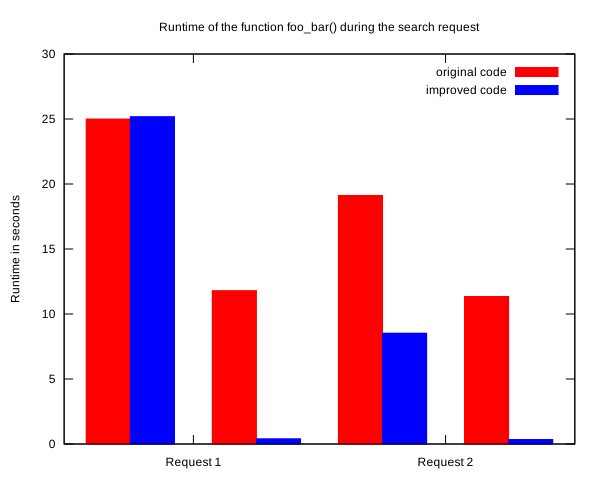
We easily recognize that apart from the first function call, all subsequent calls go through much faster with the improved code.